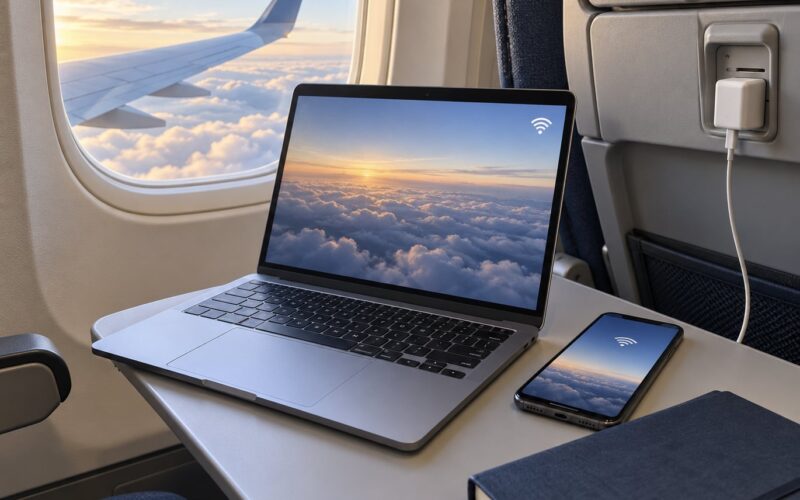
Short answer: not live from Netflix or Prime Video, unless your airline specifically offers it. Standard in-flight Wi-Fi runs over bandwidth-limited satellite or air-to-ground links that were never built for video, so live streams buffer or stall. The reliable path is to download titles over home Wi-Fi the night before, then play them offline in airplane mode.
If you want to know how to stream movies on a flight and get a result that actually works, there are really three options, and only the first one is fully in your control:
- Download before you fly. The only method that never depends on the airline, the weather, or how many people are emailing at once.
- Use the airline’s own entertainment. Seatback screens, and on some carriers a free streaming portal that plays to your phone or tablet over the cabin Wi-Fi.
- Buy a streaming-capable Wi-Fi pass. Works on a minority of aircraft with newer satellite or Starlink hardware. Expensive, and still not guaranteed.
This guide walks through the preparation order that actually matters, the apps that support offline viewing, and the mistakes that leave people staring at a buffering wheel at 35,000 feet. Last checked for 2026, because the details here change more often than most guides admit.
Table of Contents
- What You Need
- Step-by-Step: How to Stream Movies on a Flight
- Download First: How to Stream Movies on a Flight Offline
- Check the Airline Wi-Fi Before You Board
- Prepare Your Device Before the Flight
- Connect and Start Watching on Board
- Common Mistakes
- Downloading over cellular data
- Paying for a Wi-Fi tier that cannot stream
- Expecting live Netflix on a satellite link
- Ignoring region locks on downloaded titles
- Forgetting headphones and the adapter
- Running out of power mid-film
- Frequently Asked Questions
- Can you stream movies on a flight with Wi-Fi?
- Does Netflix work on airplane Wi-Fi?
- Is it better to stream movies or download them before a flight?
- Can I watch downloaded movies on a flight without Wi-Fi?
- How much data does streaming a movie use?
- What device is best for watching movies on the plane?
What You Need
You need less than you think, and all of it should be sorted before you leave the house.
- A device with enough free storage. A tablet is nicer than a phone for a long haul, but a phone with 15 to 20 GB free is plenty for a few films.
- A streaming app with offline mode. Netflix, Amazon Prime Video, Disney+, Max, Apple TV+ and YouTube all let you save titles to the device. Free ad-supported tiers mostly do not.
- An active subscription. Downloads live inside the app and vanish if the subscription lapses, so pay the bill before you travel rather than at the gate.
- Headphones. Wired earbuds are the safe default. A seatback system’s two-pin jack needs an adapter for modern wireless buds.
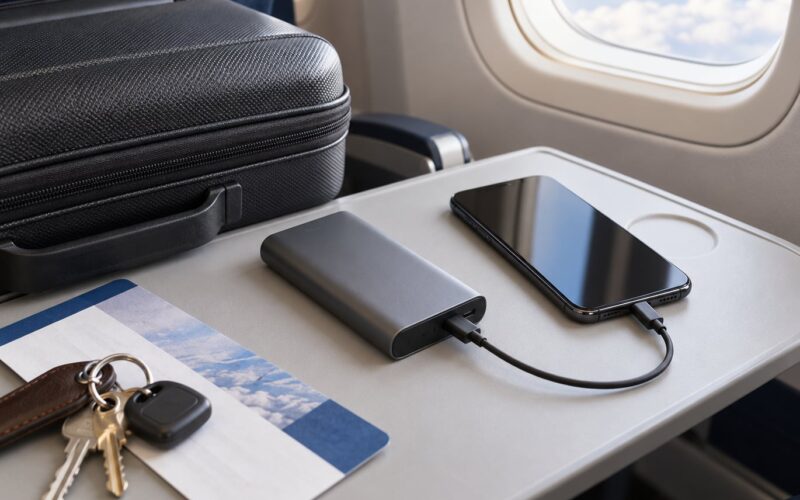
- Power. A cable, and ideally a power bank for anything over six hours. Long playback with brightness up is hard on a battery.
- Airplane mode. Turn it on after takeoff and before your media starts. It saves battery and it stops the phone burning through the cabin network looking for bars.
The one distinction worth internalising: downloaded content travels with you and needs nothing from the aircraft. Airline Wi-Fi is a shared, metered, optional thing that costs extra and varies by aircraft type, not just by airline. A carrier can have screens on one plane and none on another, so check your specific flight, not the airline’s average.
Step-by-Step: How to Stream Movies on a Flight
Download First: How to Stream Movies on a Flight Offline
Download ahead of time is the answer nine times out of ten, and the reason is boring: bandwidth. A typical domestic connection handles far more than a satellite link shared across a few hundred passengers, and forum regulars on travel boards describe the same failure repeatedly — a connection that was fine for email chokes the moment two or three people start pulling video.
Rough numbers so you know what to plan for. On home Wi-Fi, streaming at standard quality runs around 1 GB per hour, high quality roughly 3 GB per hour, and the highest setting can climb past 7 GB per hour. Two films in high quality is a substantial chunk of storage, so if you are packing light, drop one setting rather than deleting everything else.
Which apps behave well offline:
- Netflix lets you download most titles in the app, and its download quality is capped below the streaming quality even on the highest plan.
- Amazon Prime Video allows downloads on mobile and tablet apps. Some content is marked unavailable for offline use, so check the title before you count on it.
- Disney+ and Max both support downloads on their mobile apps across phone, tablet and laptop.
- Apple TV+ supports offline viewing within the app, with automatic download options per subscription.
- YouTube Premium saves videos for offline watching on mobile devices, and Premium is required.
Rental titles are the trap. A rented download typically stays valid for about 30 days, or until you begin watching it, whichever comes first. Start one the night before an early departure and you may find it expired mid-flight. Owned purchases are safer.
Check the Airline Wi-Fi Before You Board
Open the airline’s website and look up your flight number, not just the route. Most carriers publish what the aircraft offers, and the page will usually distinguish between messaging-only Wi-Fi, full browsing, and a paid tier that unlocks streaming or entertainment apps.
That distinction is the whole game. Many domestic Wi-Fi packages allow browsing and email but block video entirely, so paying for the top tier on a messaging-only aircraft accomplishes nothing except an expensive sense of having paid.
Watch for a few more details while you are in there:
- Is the service satellite-based or newer low-orbit hardware? Newer installations on widebody aircraft are dramatically faster than the older generation still flying on many routes.
- Is entertainment streamed to personal devices free, or tied to a fare class? Some carriers gate the free catalogue behind a higher cabin, and some still carry the older pay-per-use model.
- Does the airline have its own entertainment app? Several major carriers now run a portal that plays films to your phone or tablet over the cabin network with no separate purchase.
- Can you look up the film lineup in advance? Entering your flight number on the carrier’s entertainment page usually shows what is loaded on that specific aircraft.
Prepare Your Device Before the Flight
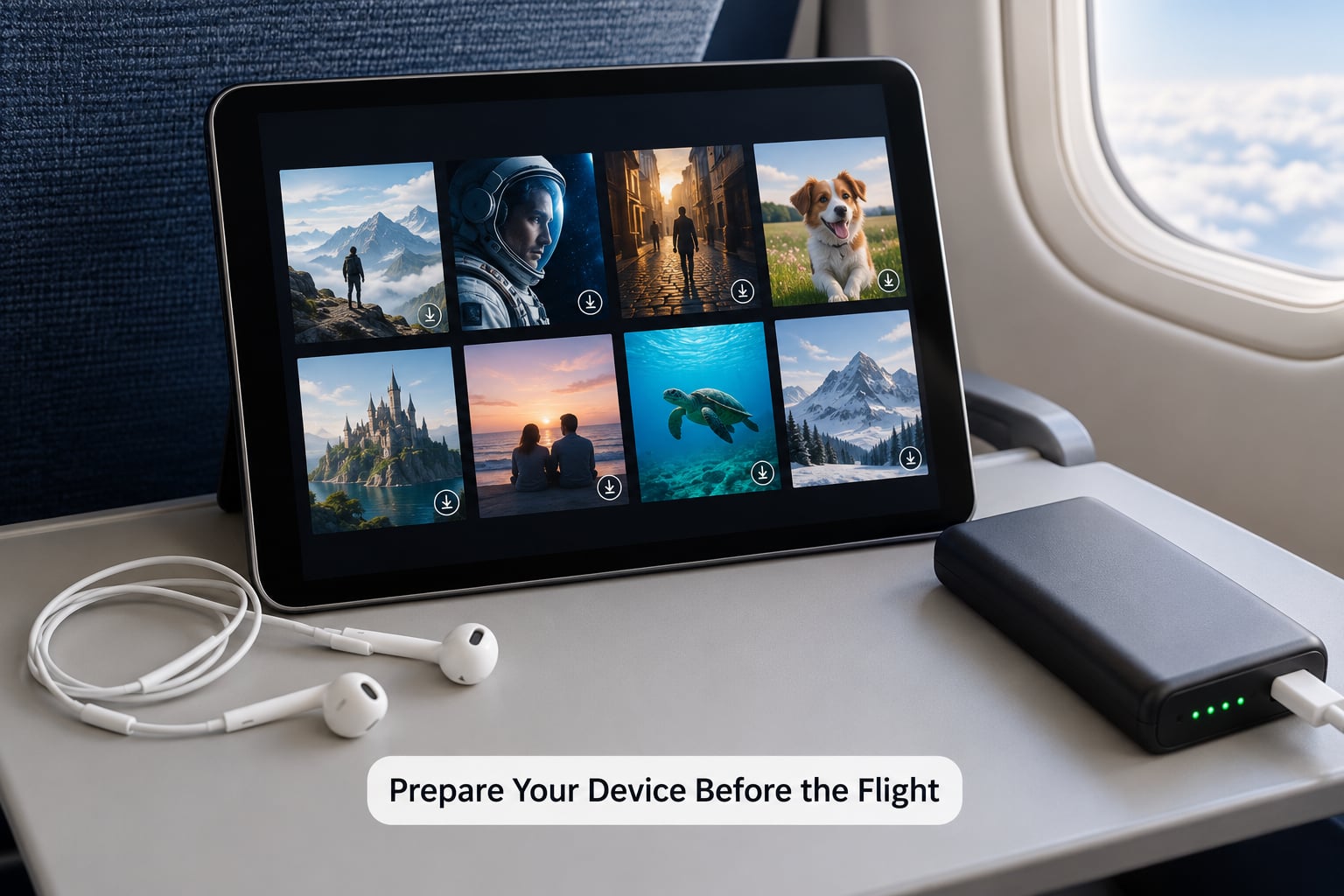
Do this at home on your own connection, not on airport Wi-Fi and definitely not at the gate.
- Install and sign in. Open each app you plan to use and log in fully. Some apps hide downloaded content from a signed-out profile.
- Check free storage. Open device settings and confirm you have room before downloading. Delete old downloads first — leftover files are the usual reason a download fails silently.
- Download your titles and confirm the licence. Tap the download icon, then open the app’s downloads or library section and verify the title actually downloaded. A grey circle means still downloading; a play button means it is ready.
- Set the download quality. Pick medium for long flights and high only where it matters to you. Storage is usually the constraint, not your patience.
- Open the app before you board. Launching each one on the ground clears up any licence check that needs a working connection.
- Pack audio and power. Earbuds, a charging cable and a power bank. If you use hearing aids, bring spares — sustained streaming from the hearing aid over several hours drains batteries noticeably faster than ordinary daily use.
Two details people miss. Downloading while out on cellular data is how you end up with a half-finished file and a data bill you did not expect, so tie the device to Wi-Fi during the download if you can. And for anyone who relies on captions, test them at home with the file playing offline — some downloaded items lose the caption track until the app re-checks the licence online.
Connect and Start Watching on Board
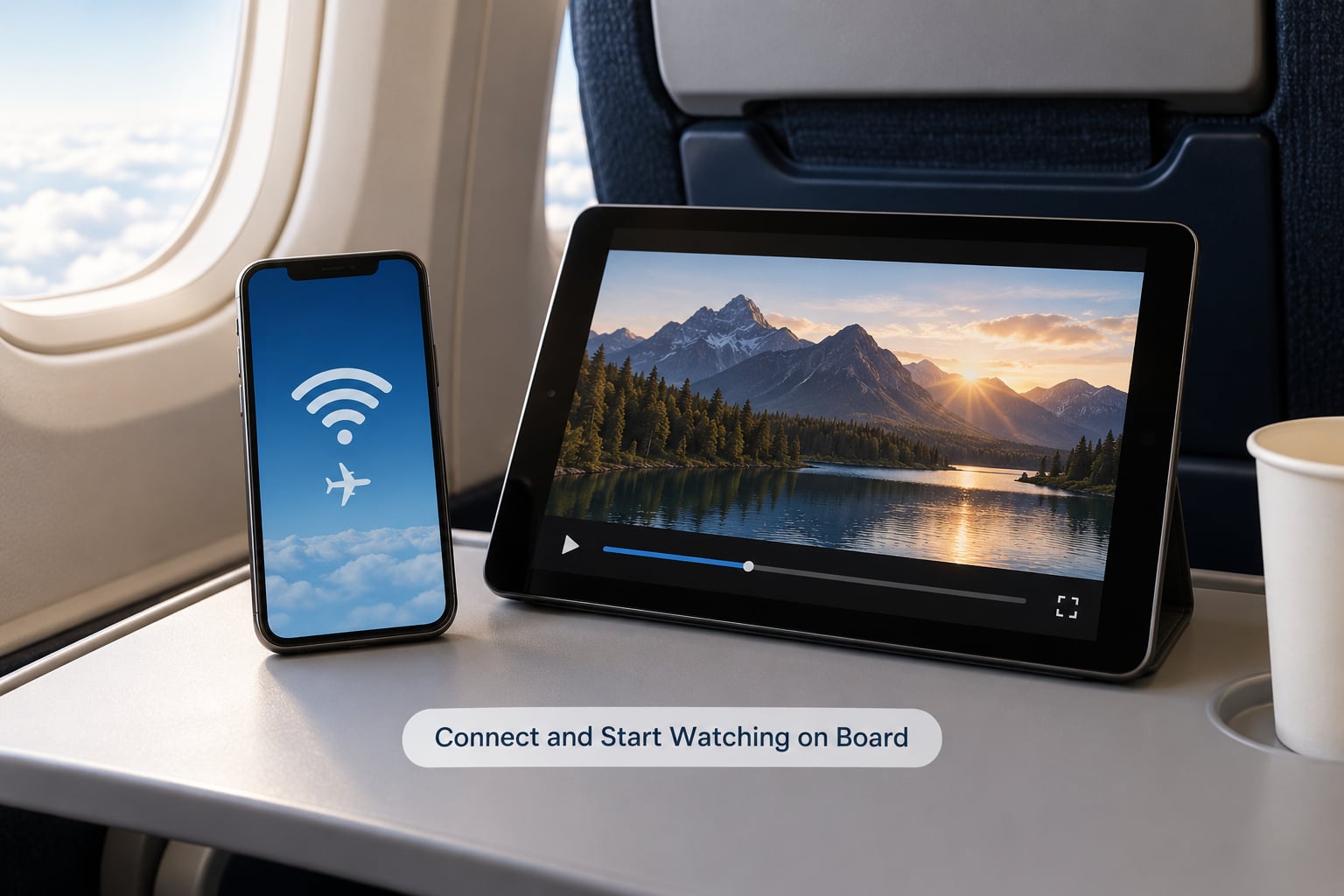
Once airborne and the seatbelt sign is off, the order is simple. Join the cabin network from Wi-Fi settings, accepting the airline terms page. Open the airline’s entertainment app or your own streaming app, and start playback.
If you are using the airline’s free entertainment on your own device, the app will usually prompt you to switch from airplane mode to Wi-Fi only. Allow that. Everything else can stay offline, which is both faster and better manners.
When the connection is slow, lower the quality inside the app before you do anything else. Standard quality needs roughly a fraction of the bandwidth that high quality does, and it usually turns an unwatchable stream into a watchable one. If the stream still stalls repeatedly, give up on it — the buffer will never catch up and you will spend the next hour watching a progress bar.
Switch back to airplane mode once your downloads are playing. That keeps your battery in reserve for the second film, and it stops your device from adding to the traffic of everyone else on board.
Common Mistakes
Downloading over cellular data
The fix is simple: download at home on Wi-Fi. If you must download at the airport, use the lounge network rather than the gate, which is usually congested and slow.
Paying for a Wi-Fi tier that cannot stream
Some packages allow browsing and messaging only, and video is blocked at the network level. Check the package description for the word streaming before you buy, and check whether your specific aircraft supports it at all.
Expecting live Netflix on a satellite link
This is the expensive version of the same mistake. Pigeons-throttled satellite bandwidth is shared across the cabin, and airlines block or throttle video to keep messaging and browsing usable. Travellers on travel forums describe connections that work fine until two or three people start pulling video at the same time.
Ignoring region locks on downloaded titles
Licensing agreements are tied to territories. A title you downloaded at home can be unavailable or unplayable once your location changes, and people report being blocked from downloads entirely while abroad. If you are crossing borders, download in your home country and treat anything else as a bonus rather than the plan.
Forgetting headphones and the adapter
Seatback systems use a two-pin connector that will not accept modern wireless earbuds. Bring a small adapter, and test the pairing before takeoff rather than during the movie.
Running out of power mid-film
Screen brightness plus continuous playback is a heavy draw. Lower brightness, carry a cable and a power bank, and pick shorter titles for the longest legs so a dead battery never ends a film in the middle.
A few habits worth keeping: dim your screen on a red-eye so you are not the person lighting up the cabin; keep audio to headphones rather than playing it aloud; and download one or two things beyond what you think you need, since the extra hour is what saves you when a title turns out to be terrible.
Frequently Asked Questions
Can you stream movies on a flight with Wi-Fi?
Usually not live from a normal streaming app. In-flight Wi-Fi runs over satellite or air-to-ground links built for browsing and messaging, and shared bandwidth across the cabin cannot sustain a video stream. The exceptions are airlines that run their own entertainment portal or that have equipped the aircraft with newer fast satellite hardware. Otherwise, downloading before departure is the only dependable method.
Does Netflix work on airplane Wi-Fi?
Netflix generally will not play live over cabin Wi-Fi, because the connection is too slow and too contended, and many packages block video outright. Netflix downloads work perfectly well offline, though, and that is the standard approach: download titles at home, switch to airplane mode, and play them from the app’s downloads section. Check the licence before you leave, because downloads expire and some titles are not offered for offline use.
Is it better to stream movies or download them before a flight?
Download, every time. Streaming depends on optional, metered connectivity that costs extra and can fail at any point in the flight. Downloads work on any aircraft, on any carrier, at any altitude, with no cost and no signal required. The only argument for streaming is convenience on carriers with a genuine free entertainment portal, and even there the picture quality is usually a step below your own download.
Can I watch downloaded movies on a flight without Wi-Fi?
Yes, and that is exactly how it is designed to work. Airplane mode disables cellular radios but does not touch locally stored files, so anything saved in your app’s downloads section plays with no connection at all. Launch the app before you board, open the downloads tab, and pick a title. Leave Wi-Fi off for the whole flight and you will save battery as a bonus.
How much data does streaming a movie use?
It depends entirely on quality. Standard streaming runs near 1 GB per hour, high quality around 3 GB per hour, and the highest setting can exceed 7 GB per hour. A two-hour film is therefore roughly 2 GB at standard quality and 14 GB or more at maximum. Over cabin Wi-Fi these numbers are usually unachievable anyway, which is another reason downloads win. Plan roughly 3 GB per film for high quality downloads at home.
What device is best for watching movies on the plane?
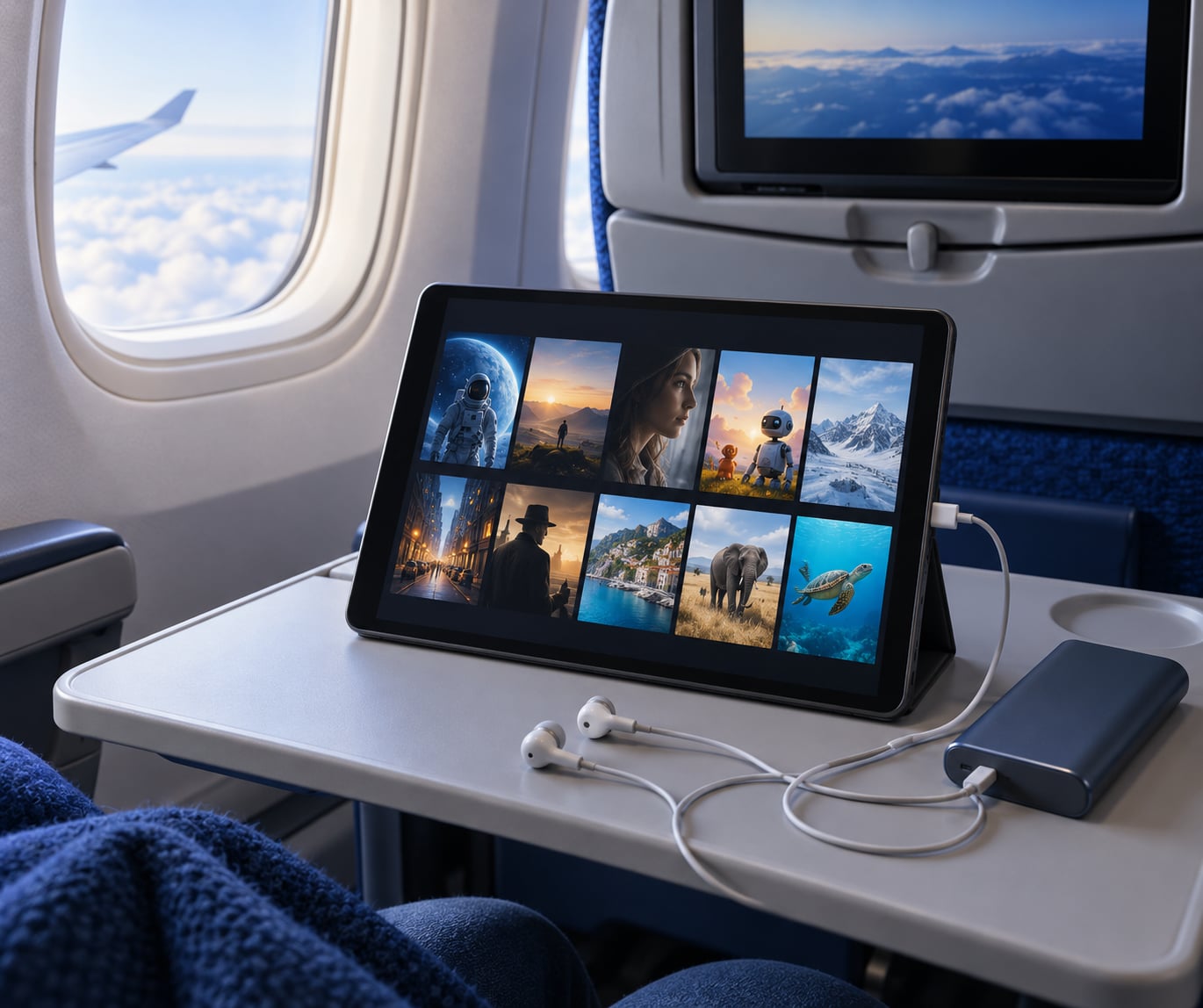
A tablet is the best compromise for long flights: a larger screen, more storage, and usually better battery life than a phone. A phone works fine if you clear a few gigabytes first. Whatever you choose, bring wired earbuds or an adapter for the seatback two-pin jack, a charging cable, and a power bank. Keep the device in airplane mode during playback to preserve the battery for the second film.
Start tonight, not the morning of. Pick two or three titles, download them at home on Wi-Fi at medium or high quality, open each app to confirm the licence, and pack a power bank with your earbuds. Everything else on this list is a backup plan for a flight where the preparation did not happen.