If you want to know how to download movies before a flight, the process is simple: connect to Wi-Fi at home, open the streaming app on your phone, tablet or laptop, tap the download button on a title, and confirm the file shows as downloaded. Then switch on airplane mode before you board and it plays with no internet at all.
That order matters more than people expect. Streaming apps store an encrypted copy of the film tied to your account, and the app needs one online check to refresh that license. Skip it and you get an error screen instead of a movie.
In-flight Wi-Fi is rarely good enough for HD video, and on many carriers it costs extra for the seat. For anyone flying more than three or four hours, offline downloads are the difference between watching something and scrolling. Families traveling with kids feel this most.
Table of Contents
- What You Need
- Step-by-Step: How to Download Movies Before a Flight
- 1. Choose a Legal App or Download Source
- 2. Check Your Device and Internet Connection
- 3. Download the Movie Before Leaving Home
- 4. Test Offline Playback in Airplane Mode
- 5. Keep the Download Ready During the Flight
- Common Mistakes
- Frequently Asked Questions
- Can I watch downloaded movies on a flight without Wi-Fi?
- Which streaming services let me download movies for offline viewing?
- How much storage do I need to download a movie?
- Do downloaded streaming movies expire?
- Why does my downloaded movie not play in airplane mode?
- Can I download movies from a rental service before my flight?
- Conclusion
What You Need
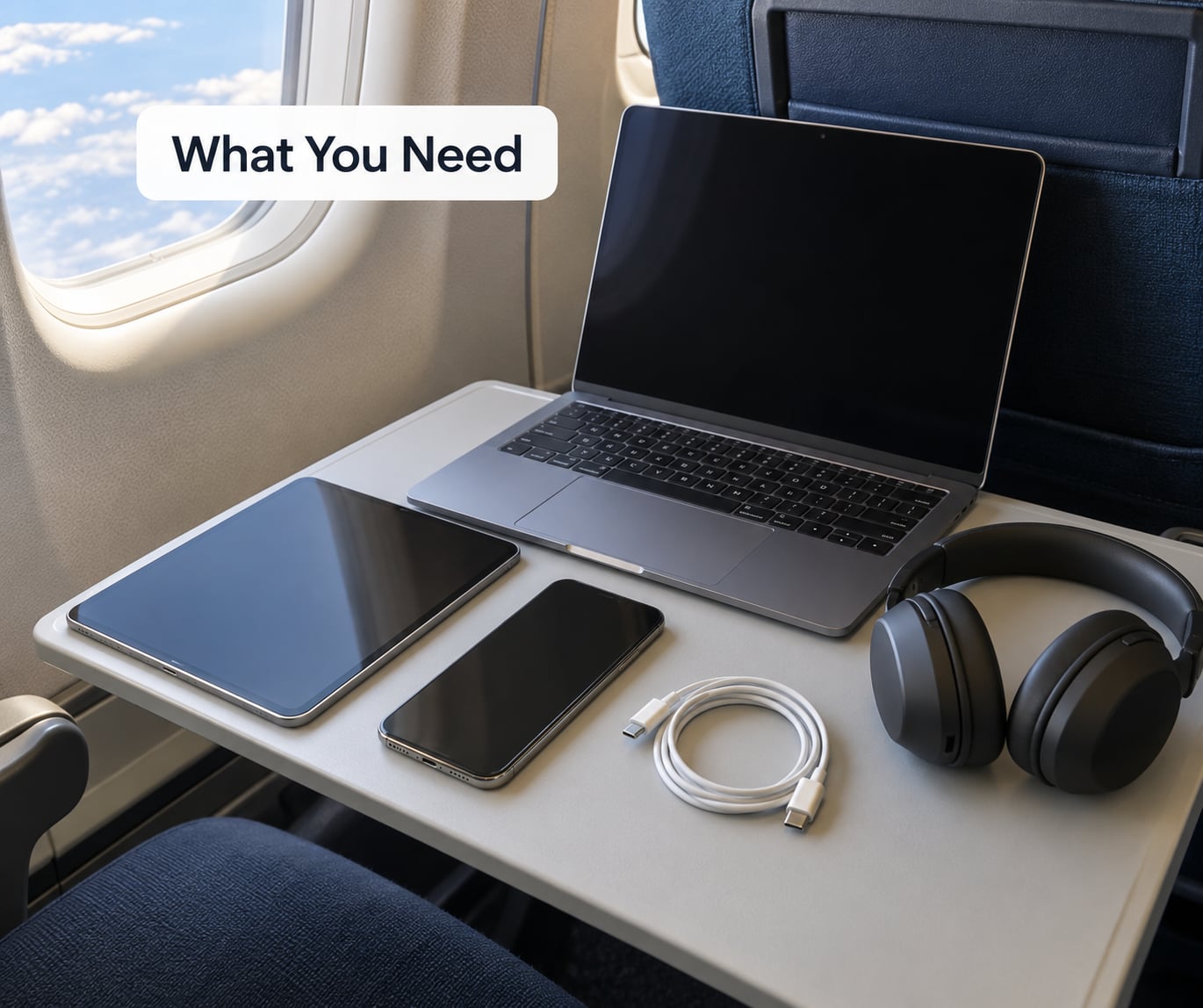
Start with the device you will actually hold for five hours. A tablet beats a phone for a long film because of the screen size and the battery. A laptop works, but only some streaming services support offline playback on desktop apps.
You also need an active subscription to a service that allows downloads, or a rental account with a movie you want. Rentals are a good fallback when you only need one film.
On storage, plan roughly 1 to 2 GB for a standard quality download and 3 to 5 GB for high quality on a feature-length film. Check free space before you start, not after the first download stalls.
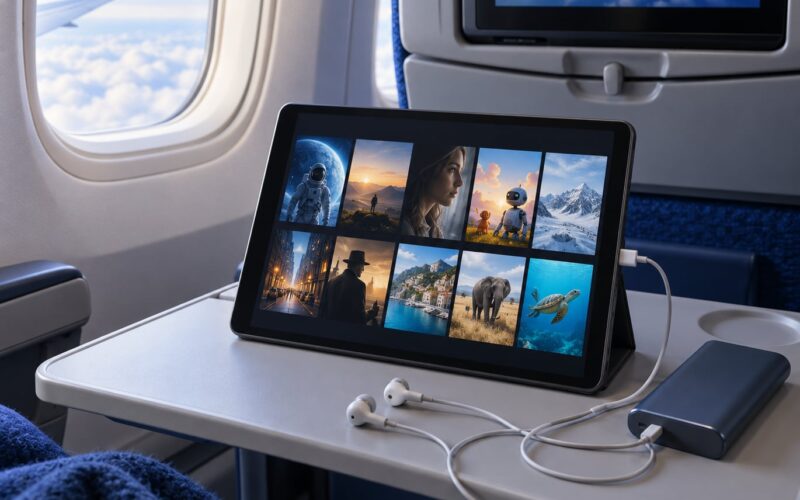
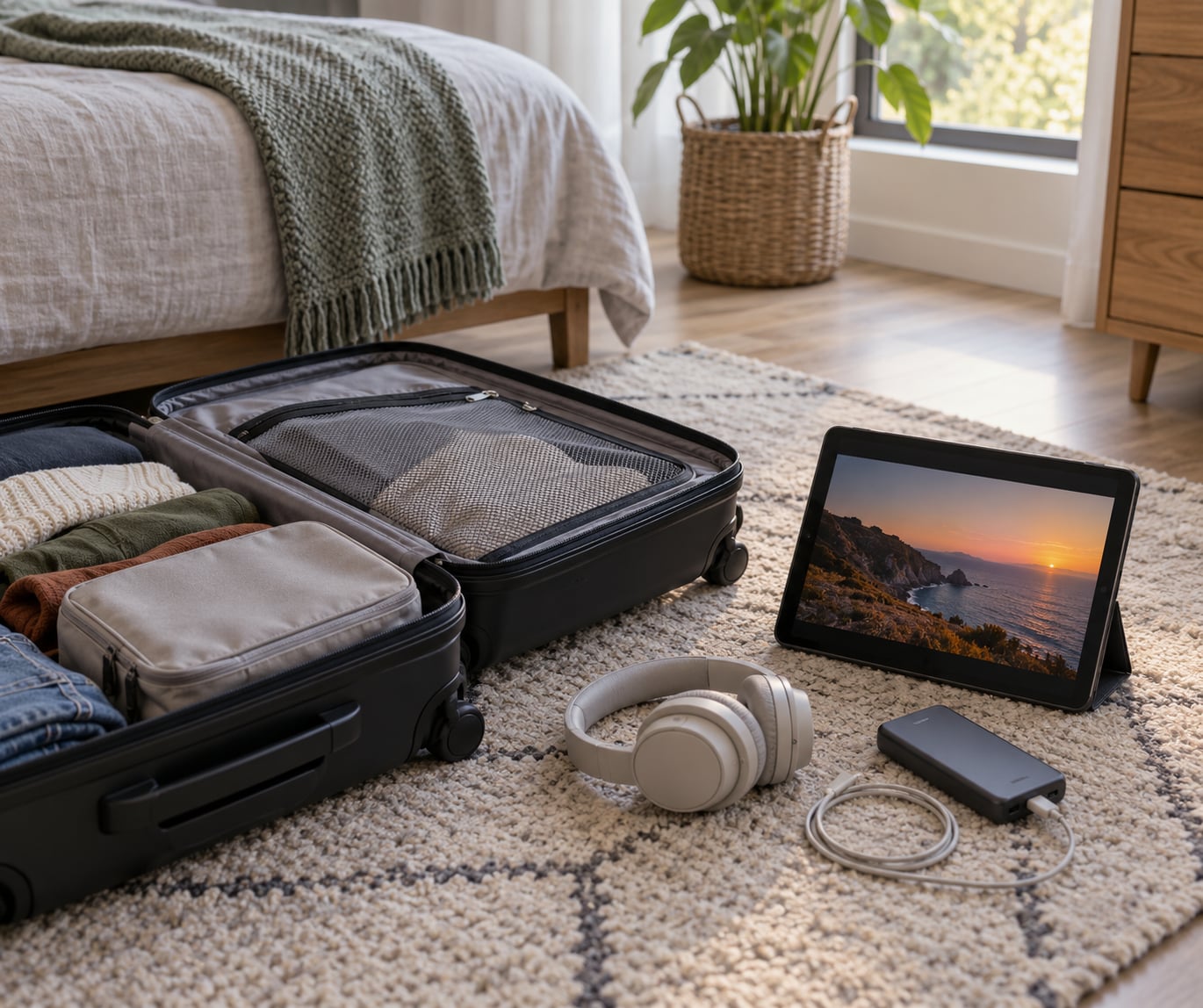
Add headphones with noise cancellation, a charger or cable, and a power bank if your battery is small. Keep a spare pair of earbuds in your carry-on, because a lost pair mid-flight is a bad afternoon.
Optional but useful: a small portable drive or a USB stick if you own digital movies, since bought files are not tied to a subscription.
Step-by-Step: How to Download Movies Before a Flight
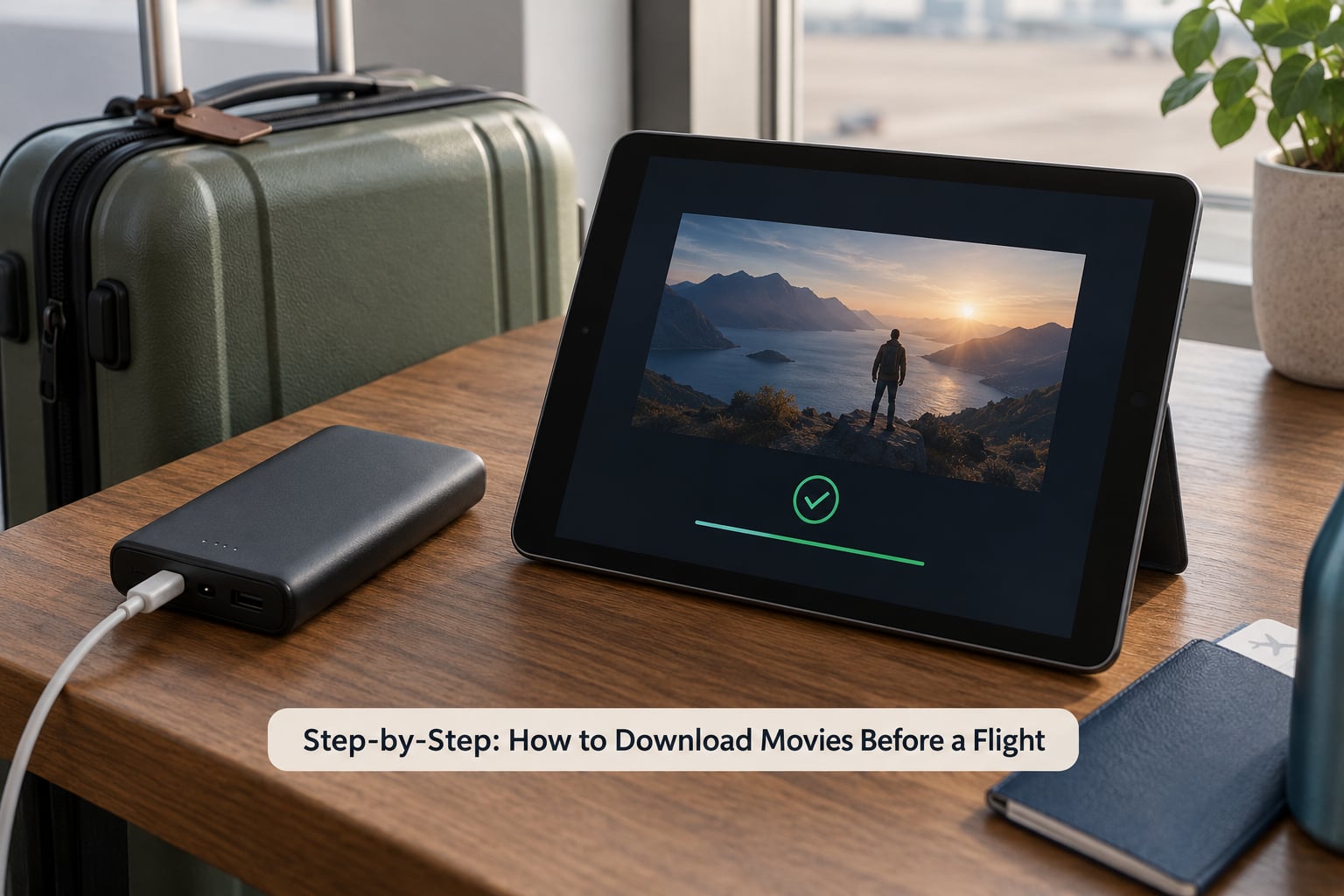
1. Choose a Legal App or Download Source
Pick one service and check that the specific title has a download option. Subscription services like Netflix, Prime Video, Disney+, Hulu and Max all support offline viewing, but not every title in their catalog does.
On Netflix, look for a downward arrow icon next to a title; if it is missing, the title is streaming-only. The same goes for Prime Video and Disney+. Searching within the app for titles marked as downloadable saves a lot of guessing.
Rental apps work differently. With Apple TV, Google Play Movies and the Prime Video rental store, you rent for a fixed window, and the movie expires unless you press play. That makes rentals good for one specific film but poor as your only plan.
Free and legal options exist too. Public library apps such as Libby and Kanopy, plus the Internet Archive, have large collections that work offline with a library card. They cost nothing and travel well.
2. Check Your Device and Internet Connection
Confirm the device and app support each other before anything else. Netflix offers offline viewing on iPhone, iPad, Android phones and tablets, plus the Windows app. Amazon Prime Video downloads work on iOS, Android and Fire devices. Disney+ covers iOS, Android, Fire TV, Apple TV and select smart TVs. Hulu works on iOS, Android and Fire devices.
Those limits explain the most common laptop complaint. There is no legal way to watch an Amazon Prime Video download in a Mac browser, and streaming apps do not belong on every desktop. Check before you rely on it.
Next, confirm you have enough free storage and a connection fast enough to finish a multi-gigabyte download. Home Wi-Fi is ideal. A hotel connection or phone hotspot can take an hour or stall halfway, and a partial download will not play.
Turn off any setting that restricts downloads to Wi-Fi if you plan to finish at a lounge, and check that automatic app updates are not running in the background, since they can interrupt a large download.
3. Download the Movie Before Leaving Home
Open the app, search for the title and open its detail page. Tap the download button, then choose your quality. Standard is fine on a small phone screen and saves a few gigabytes; high quality looks much better on a tablet or laptop.
Set the audio and subtitle language while the download runs. Doing it now means you are not fumbling through menus at 35,000 feet with a row of passengers watching. Knowing how to download movies before a flight well ahead of time is mostly about removing small decisions from the morning you are leaving.
Netflix offers smart downloads that replace an episode when you finish one, and an auto-download option for the next episode in a series. Useful on a long flight, and worth turning on before you leave so it finishes while you pack.
Wait for the completed indicator, not just the progress bar. Open the app’s downloads or My Netflix tab and confirm the file shows a completed state with no error.
Download your second and third choices too. Regular travelers keep a backup, because a service can drop a title from the catalog and take the download with it.
4. Test Offline Playback in Airplane Mode
This is the step people skip, and it is the step that saves the flight. Turn on airplane mode at home, open the app and start the downloaded title. If it plays through a few minutes without buffering, you are set.
Check subtitles and audio while you are in airplane mode, since some tracks fetch separately. Then turn airplane mode back off and open the app once more, which refreshes the download license right before you go.
If it fails, open the app on Wi-Fi and hit play on the download once. Many users report that the file will only play after that online check, or only when airplane mode is fully on.
Time it the same way you will watch it. A movie roughly matches a long-haul segment of your route, which is more useful than downloading four hours of content for a two-hour flight.
5. Keep the Download Ready During the Flight
Organize downloads before takeoff so nothing is buried. Group them in order of flight length, shortest first, and put the family picks in one folder.
Charge to full before boarding, keep the cable in your seat pocket rather than checked luggage, and lower brightness and switch on battery saver once you are settled. Some travelers turn on grayscale so a bright screen does not spill onto a sleeping neighbor.
Keep headphones connected and take the earbud case with you. On a red-eye, muted playback with subtitles is the only version that works.
After the trip, delete what you watched and check what is left before your next flight. Downloads you never open just take up room.
Common Mistakes
Downloading the wrong version. Series often offer separate seasons or a shorter cut. Check the runtime and the season before you save, especially when a film has an extended edition.
Running out of space mid-download. High quality files of a two-hour film can reach several gigabytes. Free up space first and download one title at a time so a failure never leaves half a file.
Assuming every title is downloadable. Some live, news and licensed programming has no offline option at all. The download button is the only reliable indicator.
Never testing airplane mode. A download that only ever played on Wi-Fi can fail in the air with a license error. Test it the night before.
Using unlicensed files. Sites offering free movies with no subscription are a common trap. Beyond legal risk, those files often fail on a device or play poorly.
Letting downloads expire. Netflix downloads expire, commonly about seven days after you save them, and rentals from stores usually expire about 30 days after the rental starts. Once you press play, the clock changes again, usually giving you roughly 48 hours to finish.
Crossing a border. Downloads can fail outside your home country because of licensing rules, even with a valid subscription. Download in your country of origin, and expect some titles to be unavailable abroad.
| Service | Offline viewing | Main devices | Expiry rule |
|---|---|---|---|
| Netflix | Subscription titles marked downloadable | iOS, Android, Windows app | Often about 7 days after download |
| Prime Video | Rental, purchase and eligible titles | iOS, Android, Fire devices | About 30 days to start, then roughly 48 hours to finish |
| Disney+ | Most titles in the catalog | iOS, Android, Fire TV, Apple TV | About 7 days after download |
| Hulu | Most titles with no live TV | iOS, Android, Fire devices | About 30 days to start watching |
| Apple TV or Google Play rentals | Rented or purchased films | Phones, tablets, laptops | About 30 days from rental, then about 48 hours to finish |
Download size matters too. Two hours of standard quality video lands around 1 to 2 GB, while the same film in high quality can run 3 to 5 GB. Three movies in high quality is a lot to ask of a phone with 32 GB free.
Frequently Asked Questions
Can I watch downloaded movies on a flight without Wi-Fi?
Yes, if the title was downloaded before boarding and your subscription is active. Streaming apps store an encrypted copy on the device, so no internet is needed once playback starts. Airplane mode works fine, and many travelers report downloads play only with airplane mode fully on. Open the app once while still on Wi-Fi before you leave the gate so the license refreshes.
Which streaming services let me download movies for offline viewing?
Netflix, Prime Video, Disney+, Hulu and Max all support downloads on their mobile apps, with some variation by device. Amazon and Hulu limit offline viewing to iOS, Android and Fire devices. Netflix adds a Windows app. Desktop browsers generally do not work. Not every title is included, so check for the download icon on the title page before you count on it.
How much storage do I need to download a movie?
Budget roughly 1 to 2 GB for a feature film in standard quality and 3 to 5 GB in high quality. A two-hour film at high quality can reach the top of that range. Download one title at a time and keep at least 5 GB free so a large file can finish without stalling. A partial download will not play in the air.
Do downloaded streaming movies expire?
They do. Netflix downloads commonly expire about seven days after you save them, and other subscription services give roughly 30 days to start watching. Rented films from stores like Apple TV and Google Play usually stay valid about 30 days from the rental, then leave roughly 48 hours after you first press play to finish. Deleted or removed titles lose their download too.
Why does my downloaded movie not play in airplane mode?
Most failures come from a license that has not been refreshed, which happens when the app has not opened on Wi-Fi for several days. Open the app at home, start the download, then switch to airplane mode and confirm it plays. If you see a license error, go back online, restart the app, update it, and play the file once before flying. Region locks can also block playback outside your country.
Can I download movies from a rental service before my flight?
Yes, and rentals are useful when you want one specific film. Buy the rental a day or two ahead, download it to the device, and test it offline before you leave. Remember the window is short: about 30 days to start playback and roughly 48 hours to finish once you press play. Start watching it in the air rather than waiting until the last hour.
Conclusion
Start the night before, not the morning of. Download two movies at minimum, plus a series episode or a free library film as a backup, and confirm each one shows as completed in the app’s downloads section.
Then do the part most people skip: turn on airplane mode, open the app and play for a few minutes. Charge everything to full, pack the cable and a spare pair of earbuds, and you will land with a movie instead of a buffering wheel.